

Are there Chrome Tips for using Chrome with a pen display?
Jun 02, 2025
Leave a message
Are you tired of using your Chrome browser on a regular screen and want to level up your browsing experience with a pen display? Well, you're in the right place! As a Chrome Tip supplier, I've got some awesome tips and tricks to share with you on how to use Chrome effectively with a pen display. So, let's dive right in!


Customize Your Chrome Interface
One of the first things you can do to enhance your Chrome experience with a pen display is to customize the interface. You can use the pen to easily drag and rearrange tabs, bookmarks, and the toolbar. Right - click with the pen to access context menus quickly. And don't forget about the Chrome Web Store! There are tons of extensions that can make your pen - display - Chrome combo even better. For example, extensions that allow you to take handwritten notes directly on web pages or highlight text with a simple stroke of the pen.
Take Advantage of Gestures
Most pen displays support various gestures that can be used in Chrome. These gestures can save you a lot of time and make your browsing more efficient. For instance, you can use a two - finger swipe to go back or forward in your browsing history, just like on a touchscreen device. A quick double - tap with the pen can open a link in a new tab. You can also set up custom gestures for actions like refreshing the page or opening the bookmarks bar. Experiment with different gestures to find what works best for you.
Use Chrome's Built - in Tools
Chrome has some great built - in tools that are perfect for use with a pen display. The screenshot tool, for example, allows you to capture parts of a web page easily. You can use the pen to draw around the area you want to capture and then annotate the screenshot right away. Another useful tool is the translation feature. If you come across a page in a foreign language, simply use the pen to select the text you want to translate, and Chrome will do the rest.
Enhance Productivity with Pen - Specific Features
When using a pen display with Chrome, you can take your productivity to the next level. For example, you can use the pen to draw mind maps or flowcharts on web - based diagramming tools. Many note - taking apps integrated with Chrome also support pen input, allowing you to write down your thoughts, ideas, and to - do lists in a natural and efficient way. Some apps even offer features like converting handwritten text to typed text, which can be really handy when you need to share your notes.
Protect Your Privacy and Security
Just like when using Chrome on any other device, it's important to protect your privacy and security when using it with a pen display. Make sure to keep your Chrome browser and pen display drivers up to date. Use strong passwords and enable two - factor authentication for your accounts. You can also use Chrome's privacy settings to control what information is shared online. For example, you can block unwanted ads and trackers, which not only protects your privacy but also makes your browsing experience faster and more enjoyable.
Chrome Tips for Different Use Cases
- For Students: If you're a student, Chrome with a pen display can be a powerful learning tool. You can use it to annotate e - books, take notes during online lectures, and collaborate with classmates on group projects. There are also many educational apps available on the Chrome Web Store that support pen input, such as math problem - solving apps and language learning tools.
- For Artists and Designers: Artists and designers can use Chrome with a pen display to access online design resources, reference images, and inspiration. They can also use web - based design tools to create sketches, illustrations, and digital art directly on the browser. The precision of the pen allows for detailed work, and the ability to quickly switch between different tools and colors makes the creative process more fluid.
- For Professionals: Professionals in various fields can benefit from using Chrome with a pen display. For example, marketers can use it to create and edit social media posts, while project managers can use it to manage tasks and schedules on project management platforms. The pen input makes it easier to interact with data - heavy dashboards and reports.
Related Chrome Parts and Accessories
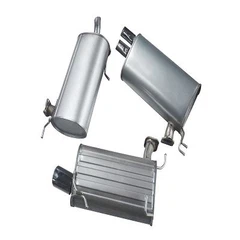
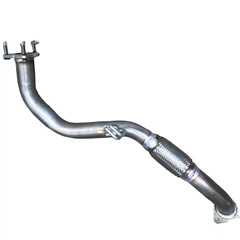
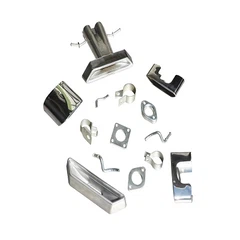
If you're interested in enhancing your Chrome experience even further, you might want to check out some related parts and accessories. For example, a Catalytic Converter Cone can help improve the performance of your exhaust system, which is especially important if you're using Chrome on a device that generates a lot of heat. An Exhaust Y Pipe Connector can also play a role in optimizing the overall system. And of course, don't forget about the Chrome Tip itself, which not only adds a stylish look but can also contribute to better functionality.
Contact Us for More Information
If you're interested in learning more about our Chrome Tips or have any questions about using Chrome with a pen display, we'd love to hear from you. Whether you're a casual user looking to improve your browsing experience or a business looking for bulk purchases, we can provide you with the right solutions. Reach out to us to start a conversation about your needs and how we can help you get the most out of Chrome and your pen display.
References
- Chrome Help Center: Google's official resource for Chrome browser features and troubleshooting.
- Pen display manufacturer's documentation: Information on the specific features and gestures supported by your pen display.
- Chrome Web Store: A vast library of extensions and apps that can enhance your Chrome experience.
Send Inquiry