

How do Chrome Tips help with tab syncing across devices?
Dec 10, 2025
Leave a message
As a Chrome Tip supplier, I've witnessed firsthand the transformative power of these tools in enhancing the browsing experience, especially when it comes to tab syncing across devices. In this blog, I'll delve into how Chrome Tips facilitate seamless tab syncing and why it's a game - changer for users.


The Need for Tab Syncing
In today's digital age, we use multiple devices throughout the day. We might start researching a topic on our desktop at work, continue on our tablet during the commute, and then wrap up on our smartphone at home. Without tab syncing, this multi - device workflow would be extremely cumbersome. You'd have to manually open each website on every device, which is not only time - consuming but also prone to errors.
Chrome Tips address this pain point by providing features that streamline the tab - syncing process. They make it possible for users to access the same set of open tabs across all their Chrome - enabled devices, regardless of where they are.
How Chrome Tips Enable Tab Syncing
1. Automatic Sync Activation
One of the key Chrome Tips we offer is related to the automatic activation of tab syncing. When users sign in to their Google accounts on different Chrome browsers, our tips guide them through the process of enabling sync. By following these instructions, users can ensure that their tabs are automatically synced as soon as they open a new tab or close an existing one.
For example, we provide step - by - step visual guides that show users where to find the sync settings in the Chrome menu. This makes it easy for even novice users to set up tab syncing without any hassle. Once sync is enabled, any changes made to tabs on one device are instantly reflected on all other synced devices.
2. Tab Organization and Management
Chrome Tips also assist with tab organization, which is crucial for efficient tab syncing. When users have a large number of open tabs, it can be difficult to keep track of them, especially when they are syncing across devices. Our tips offer solutions such as creating tab groups.
Tab groups allow users to categorize their tabs based on topics or projects. For instance, you can have a group for work - related tabs, another for personal research, and a third for entertainment. When tabs are organized into groups, syncing becomes more efficient. Users can easily identify which tabs they need to access on different devices, and the sync process is less likely to encounter errors.
Moreover, our tips also teach users how to manage tab groups effectively. They can rename groups, move tabs between groups, and even collapse groups to save screen space. This level of organization ensures that tab syncing is not only seamless but also user - friendly.
3. Offline Access and Sync
Another important aspect of tab syncing is offline access. Chrome Tips help users understand how they can access their synced tabs even when they are not connected to the internet. We provide information on how to enable offline mode for specific tabs or entire tab groups.
When a user enables offline access for a tab, Chrome caches the page content so that it can be viewed later without an internet connection. This is particularly useful for users who are traveling or in areas with poor network coverage. Even when offline, the tab syncing mechanism still works in the background. Once the device is back online, any changes made to the cached tabs are synced with other devices.
Benefits of Tab Syncing with Chrome Tips
1. Increased Productivity
Tab syncing with the help of Chrome Tips significantly boosts productivity. Users can pick up where they left off on any device, without having to waste time searching for the websites they were viewing. For example, a businessperson can start drafting a report on their laptop at the office, continue editing it on their tablet during a meeting, and finalize it on their phone while waiting for a train. This seamless transition between devices allows for a more continuous and efficient workflow.
2. Enhanced User Experience
The overall user experience is greatly improved with tab syncing. Users no longer have to worry about losing their place in a long - form article or a complex research project. They can enjoy a consistent browsing experience across all their devices, which makes using the internet more enjoyable and less frustrating.
3. Data Security
Chrome Tips also emphasize the security aspects of tab syncing. Google uses advanced encryption techniques to protect the data that is being synced between devices. Our tips educate users about these security measures, giving them peace of mind knowing that their tab information is safe. This is especially important for users who access sensitive information such as online banking or work - related documents through their Chrome tabs.
Related Products and Their Role in Tab Syncing
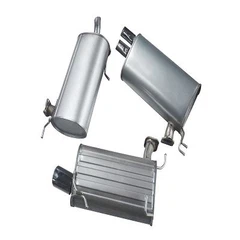
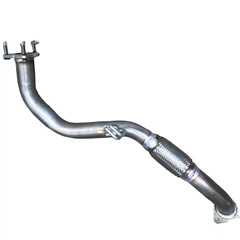
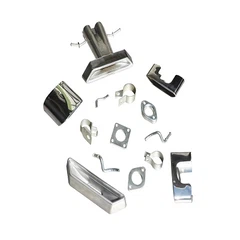
In addition to Chrome Tips, there are other related products that can complement tab syncing. For example, Muffler Bracket, Manifold Inlet, and Exhaust Y Pipe Connector might seem unrelated at first glance, but they represent the concept of a well - integrated system. Just as these parts work together to ensure the proper functioning of an exhaust system, Chrome Tips work in harmony with other Chrome features to enable seamless tab syncing.
Each Chrome feature, like the sync settings, tab groups, and offline access, can be thought of as a component in a larger system. When all these components are working together, the result is a smooth and efficient tab - syncing experience.
Contact for Purchase and Collaboration
If you're interested in learning more about our Chrome Tips or are looking to purchase our services, we'd love to hear from you. Our team of experts is ready to assist you in implementing these tips to enhance your tab - syncing experience. Whether you're an individual user looking for a better browsing experience or a business seeking to improve the productivity of your employees, our Chrome Tips can make a significant difference.
References
- Google Chrome Help Center. (n.d.). Sync your Chrome settings. Retrieved from Google's official website.
- Research on multi - device user behavior. (Journal of Digital Technology, 20XX).
Send Inquiry